Des analytics LinkedIn plus approfondis que les insights natifs
Socialinsider offre aux entreprises des insights approfondis sur l'engagement et les performances sur LinkedIn, dans une seule plateforme facile à utiliser.
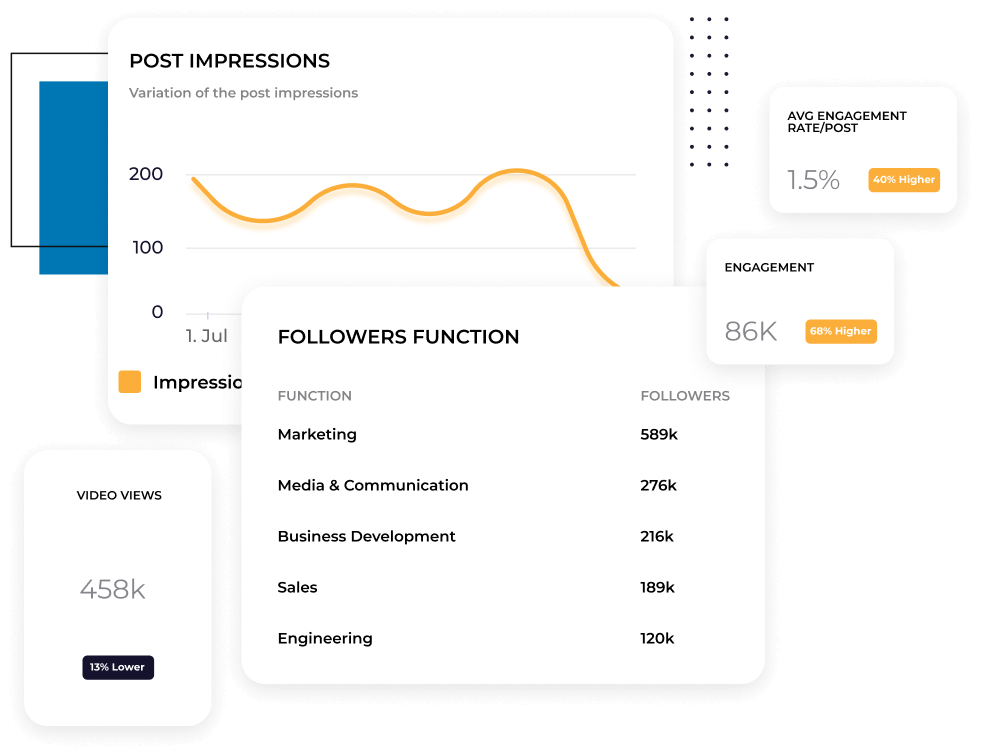






Toutes tes métriques LinkedIn dans un seul dashboard
Suis l'Engagement, les Impressions, les Clicks, les Video Views et les Followers Growth depuis une seule vue. Plus besoin de passer entre les analytics natifs de LinkedIn et les feuilles de calcul. Découvre les performances de ton contenu sur plusieurs jours, semaines ou mois, sans recréer la vue à chaque fois.
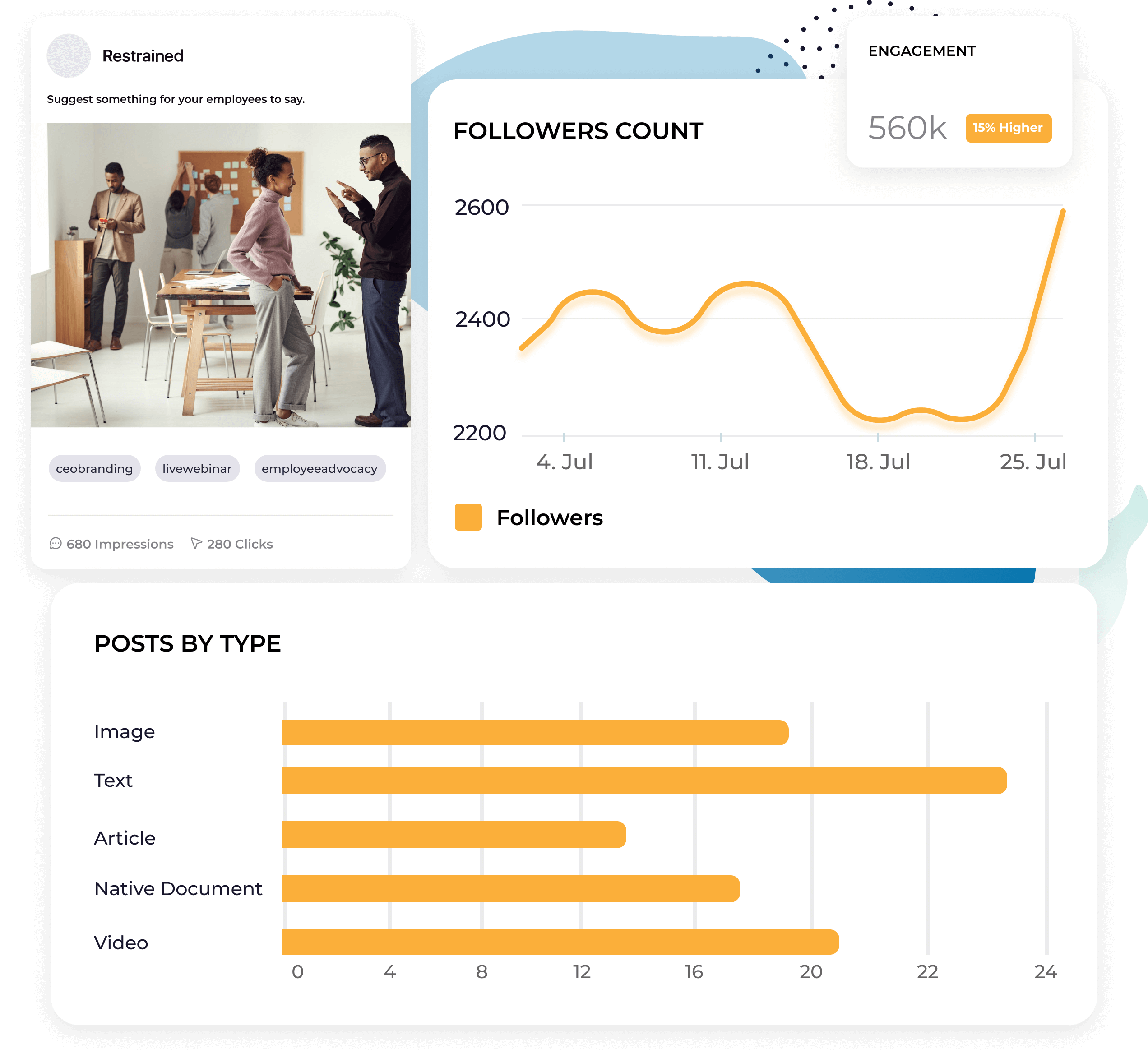
Découvre ce qui fonctionne au niveau de chaque publication
Les métriques au niveau du compte te donnent la moyenne. Les analytics des publications te montrent les formats, sujets et styles de communication qui intéressent ton audience. Identifie les tendances dans ton contenu pour miser davantage sur ce qui fonctionne.

"Nous avons commencé à utiliser Socialinsider pour créer une analyse complète de la concurrence."

Sache exactement qui ton contenu atteint
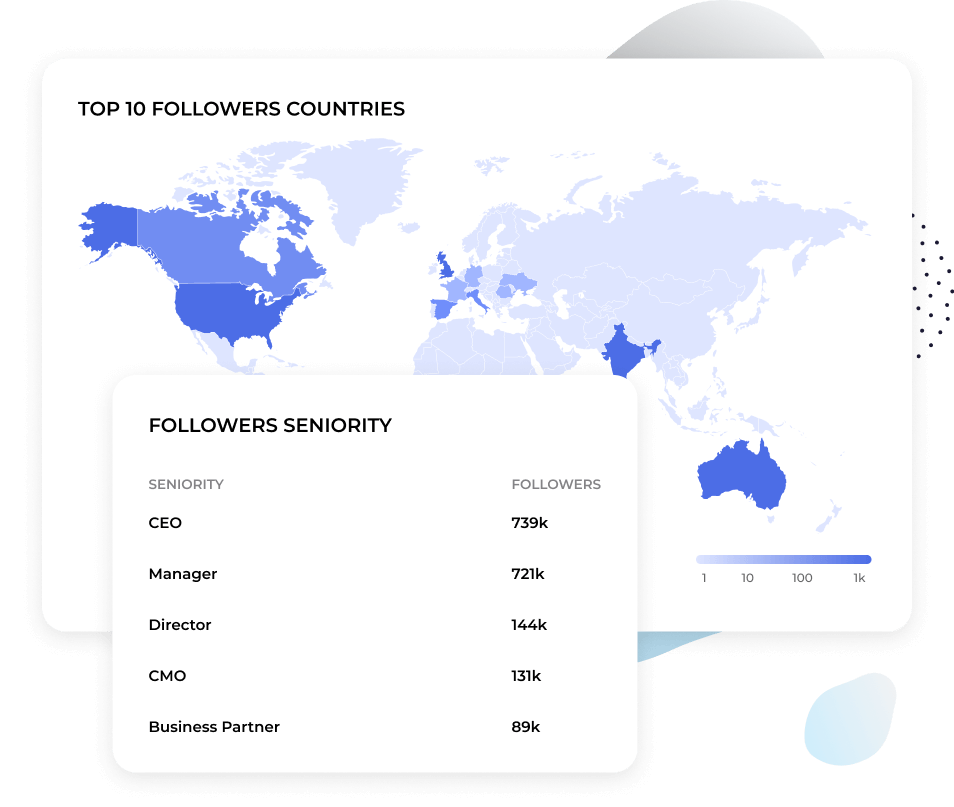
Comprends les attributs de ton audience, comme l'intitulé du poste, le secteur d'activité et la taille de l'entreprise. Découvre si ton contenu trouve un écho auprès des décideurs que tu cibles ou s'il attire la mauvaise audience. Socialinsider t'offre le niveau de détail dont tu as besoin pour ajuster.
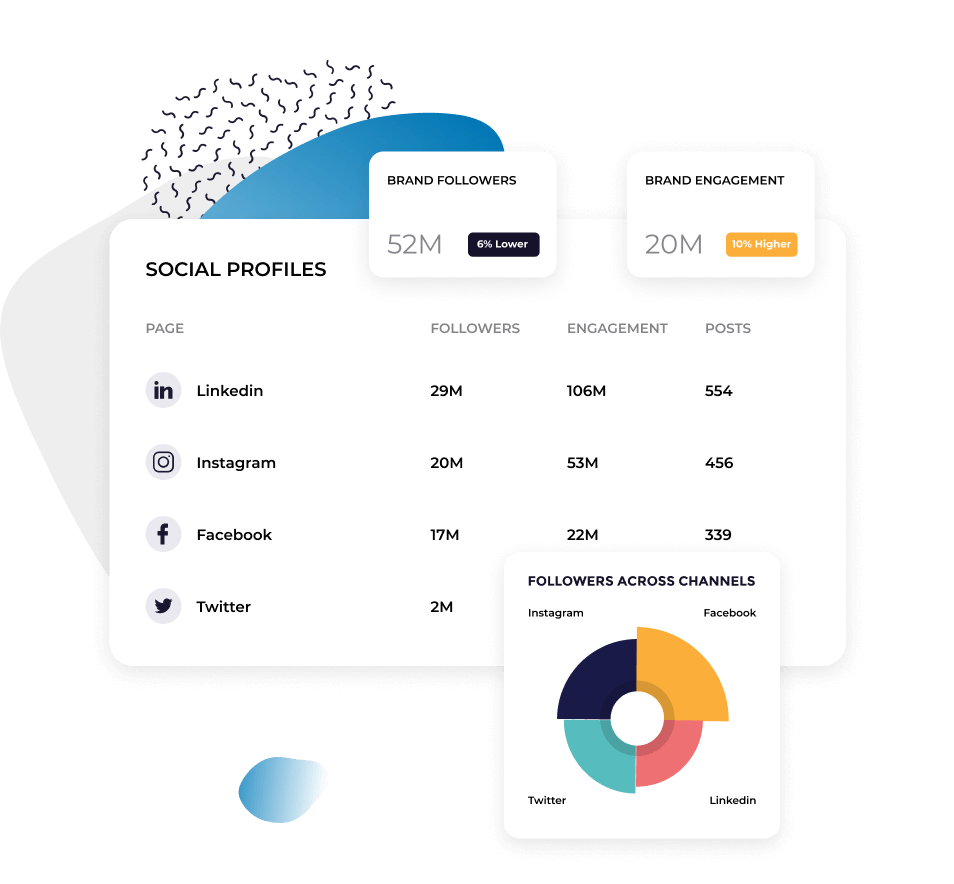
Compare les métriques LinkedIn à celles de tes autres canaux
Vois comment LinkedIn se compare à tes autres plateformes social media dans une seule vue cross-canal. Comprends où l’engagement est le plus fort, où la croissance est la plus rapide et où tu risques de surinvestir ou de sous-investir.
Ce qu'ils disent de nous
"Le service client est aussi l’une de mes fonctionnalités préférées. Tu es tout simplement exceptionnel. Ton équipe est très réactive, chaleureuse et serviable. Ce qui n’est pas courant."

"Socialinsider nous a aidés à comprendre si nous progressions ou reculions, notamment par rapport aux autres comptes que nous suivons."

"Socialinsider permet d'analyser la concurrence et d'obtenir des insights sur les performances par rapport au marché."

"L’analyse des sentiments est incroyable pour les hashtags Instagram. Ce nouveau dashboard d’écoute social media m’a aidé dans ma planification à long terme."

"Nous utilisons ce dashboard de social media analytics pour nos 40 clients social media. Toutes les données de performance sont réunies au même endroit."

"Avec Socialinsider, notre équipe est devenue plus efficace. Nous n'avons plus besoin de consacrer du temps à la collecte de données social media. Nous pouvons plutôt nous concentrer sur les insights et l'analyse."

"Nous utilisons Socialinsider pour obtenir des insights social media au quotidien lorsque nous devons définir de simples ajustements stratégiques ou examiner les performances de certaines publications social media."

"En moyenne, un rapport social media pour une marque demande 1 à 2 heures de travail avec Socialinsider, alors qu'il fallait auparavant une journée entière pour rassembler les données."

"Socialinsider nous a fait économiser plus de 16 k$ par an. Cela nous a permis de gagner du temps sur les rapports mensuels et les analyses complexes à long terme."

Comment suivre le taux d'engagement LinkedIn dans Socialinsider
Les outils de social media analytics et d'analyse de la concurrence de Socialinsider te permettent de mesurer les performances social media, de réaliser des audits et de comparer les performances.
Commence par créer un compte d'essai sur Socialinsider
Connecte les profils que tu gères
Obtiens toutes les métriques d'engagement de n'importe quel compte professionnel LinkedIn
Analyse les données historiques des Posts
Effectue une analyse cross-canal pour évaluer tes performances sur LinkedIn.
Obtiens des insights concurrentiels et explore les métriques de social media analytics
Questions fréquentes
Une question ? Nous avons les réponses.
Que sont les analytics LinkedIn ?
Les analytics LinkedIn sont des données et des insights qui t'indiquent les performances de ta page d'entreprise LinkedIn. Tes analytics LinkedIn incluent des métriques liées à ton audience, ton contenu, ton reach, tes campagnes publicitaires, et bien plus.
Voici quelques métriques spécifiques que tu peux retrouver dans tes analytics LinkedIn :
- Vues de page : Le nombre de fois où ta page d'entreprise a été vue
- Followers : Le nombre de Followers de ta page
- Impressions des publications : Le nombre de fois où ta publication a été vue
- Reactions : Le nombre de Reactions reçues par ta publication (par exemple, les Likes, les soutiens et les célébrations)
- Clicks : Le nombre de Clicks enregistrés sur un lien de ta publication
Tu peux aussi suivre ta croissance et tes performances à l'aide de graphiques. Tu verras ainsi si le nombre de tes Followers, les performances de tes publications et tes autres KPIs s'améliorent au fil du temps.
En surveillant tes analytics LinkedIn, tu peux t'assurer que ta page se développe, que tes publications trouvent un écho auprès de ton audience et que ta stratégie marketing LinkedIn fonctionne.
Pourquoi suivre les analytics LinkedIn ?
Voici la grande question : pourquoi suivre tes analytics LinkedIn au juste ?
Pourquoi sont-ils importants ?
Que peuvent-ils apporter à ton équipe marketing pour réellement faire la différence ?
Suivre tes analytics sur LinkedIn peut apporter quatre grands avantages à ton entreprise.
Mieux connaître ton audience cible
Tes analytics LinkedIn te donnent accès à des données sur les visiteurs de ta page (les personnes qui ont consulté la page de ton entreprise) et tes Followers (les personnes qui suivent réellement la page de ton entreprise).
Ces données comprennent notamment :
- Lieu
- Secteur d’activité
- Taille de l’entreprise
- Intitulé du poste
- Niveau hiérarchique
Cela t’aide à mieux comprendre qui compose ton audience, tout en veillant à cibler les bonnes personnes.
Par exemple, si l’audience cible du produit de ton entreprise comprend des fondateurs B2B et que la plupart de tes Followers occupent des postes débutants, tu sauras qu’il te faut adapter ton message pour attirer une autre audience.
Une fois que tu cibles les bonnes social media personas, tu peux utiliser les données démographiques de ton audience pour mieux comprendre qui elle est. Tu peux aussi utiliser les performances de tes publications pour déterminer quels types de contenu résonnent le plus auprès d’elle.
Ces données te donnent une vision claire de ton audience et de ce qu’elle souhaite voir de la part de ton entreprise.
Améliorer ta content strategy
Les analytics de la page LinkedIn de ton entreprise te tiennent au courant des performances de tes publications. Reach, Impressions, réactions, Comments, Shares, et bien plus encore. En prêtant attention au nombre de personnes qui voient et avec lequel elles interagissent avec ton contenu, tu comprends mieux quels types de publications résonnent le plus auprès de ton audience.
Tu peux créer de nombreux types de publications sur LinkedIn, notamment :
- Publications informatives composées uniquement de texte
- Publications avec image
- Publications avec vidéo
- Publications sous forme de diaporama PDF
Repères-tu des tendances dans les analytics de tes publications LinkedIn ? Lesquelles touchent une audience plus large et génèrent le plus d’engagement ?
En intégrant davantage ce type de contenu à ta stratégie, tu devrais pouvoir poursuivre ta croissance, améliorer ta content strategy et augmenter ton Reach, ton engagement et ton ROI global sur LinkedIn.
Générer un ROI LinkedIn plus élevé
Enfin, le principal avantage et la principale raison de suivre tes analytics LinkedIn, c’est que cela t’aide à générer un ROI plus élevé, c’est-à-dire un meilleur retour sur investissement.
Vois les choses ainsi. Si tu ne suis pas les métriques de tes publications organiques et sponsorisées pour voir leurs performances, tu ne sauras pas si tu obtiens la réaction espérée. Et si tu ne sais pas comment ton audience réagit, tu diffuses simplement du contenu sans savoir s’il suscite davantage d’intérêt pour ton entreprise.
En fin de compte, l’objectif de tout ce marketing LinkedIn est d’atteindre ton audience cible et de la convertir en clients payants. Tu dois surveiller de près les performances de tes publications si tu veux générer un ROI positif. Tu dois aussi ajuster et adapter ta stratégie en fonction de leurs performances pour améliorer encore ton ROI.
Comment accéder aux analytics LinkedIn ?
Il existe deux façons principales d’obtenir les données d’analytics LinkedIn de la page de ton entreprise. Nous allons te les présenter.
Comment accéder aux analytics de ta page LinkedIn depuis l’application native
Tout d’abord, LinkedIn propose ses propres analytics intégrés. Ces statistiques de base t’aident à comprendre à un premier niveau les performances de ta page d’entreprise.
Pour accéder directement à tes analytics LinkedIn, rends-toi sur la page de ton entreprise et consulte ton Dashboard.
Le résumé de ton dashboard affiche notamment :
- Quelques insights exploitables
- Tes publications récentes
- Les principales métriques, comme l’apparition dans les recherches, les visiteurs de la page, les nouveaux Followers et les Impressions
- Les publications d’employés tendance
Ton dashboard Analytics répartit les données de ta page LinkedIn dans plusieurs sections :
- Content : métriques qui montrent l’efficacité de tes publications
- Visitors : données démographiques et sources de tes visiteurs
- Followers : données démographiques et sources de tes Followers
- Leads : télécharge les leads recueillis via les formulaires de génération de leads que tu as partagés sur LinkedIn pour les importer dans ton CRM
- Newsletters : si tu as une newsletter LinkedIn, suis ici ses performances (abonnés, vues, etc.)
- Competitors : compare les informations de base de ta page avec celles de tes concurrents
- Employee advocacy : découvre des insights sur le contenu recommandé aux employés
De nombreuses entreprises sont satisfaites du niveau d’analytics fourni par leurs pages LinkedIn. Cependant, il existe une autre façon d’accéder à encore plus d’analytics si tu veux approfondir ton analyse.
Comment accéder à tes analytics LinkedIn avec une plateforme d’analytics tierce comme Socialinsider
Si tu veux approfondir tes analytics LinkedIn, utilise une plateforme d’analytics tierce. Socialinsider est la solution idéale.
Commence par créer un compte Socialinsider, si ce n’est pas déjà fait. Connecte-toi et relie ta page LinkedIn pour consulter tes propres données dans le dashboard Socialinsider.
Pour cela, clique sur Connecter des comptes social media en haut de ton dashboard d’accueil. Connecte-toi ensuite avec tes identifiants LinkedIn pour accéder à l’ensemble des analytics social media dans Socialinsider.
Les analytics LinkedIn que tu obtiens avec Socialinsider comprennent :
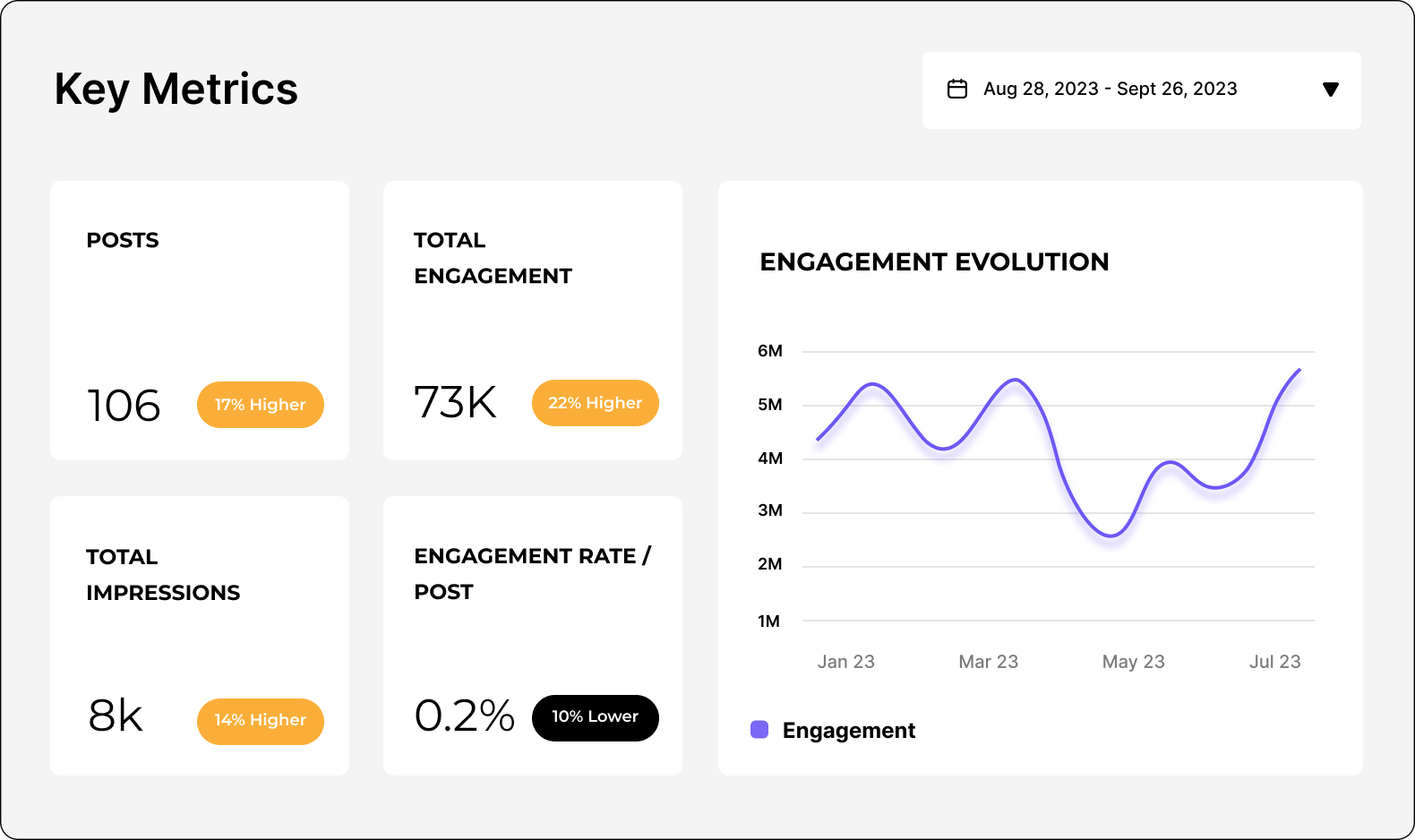
- Un rapport récapitulatif personnalisable, auquel tu peux ajouter autant de métriques différentes que tu le souhaites. Elles sont visibles en un coup d’œil avant de consulter des rapports plus détaillés.
- Un rapport de contenu qui présente des données comme le nombre de publications partagées sur une période donnée, ta moyenne de publications par jour, les publications par type, les meilleures publications et même celles qui enregistrent les moins bonnes performances, pour t’aider à repérer des tendances.
- Des insights d’Engagement qui présentent des métriques comme l’Engagement total (Likes, Comments, Shares), ainsi que des KPIs comme l’Engagement Rate (avec ou sans clics), l’Engagement moyen, les types de publications classés par Engagement, et bien plus encore. Tu peux même voir le meilleur jour et la meilleure heure pour publier selon ton Engagement moyen. Tu peux aussi détailler chaque interaction, comme les Comments, Shares, clics et Video Views.
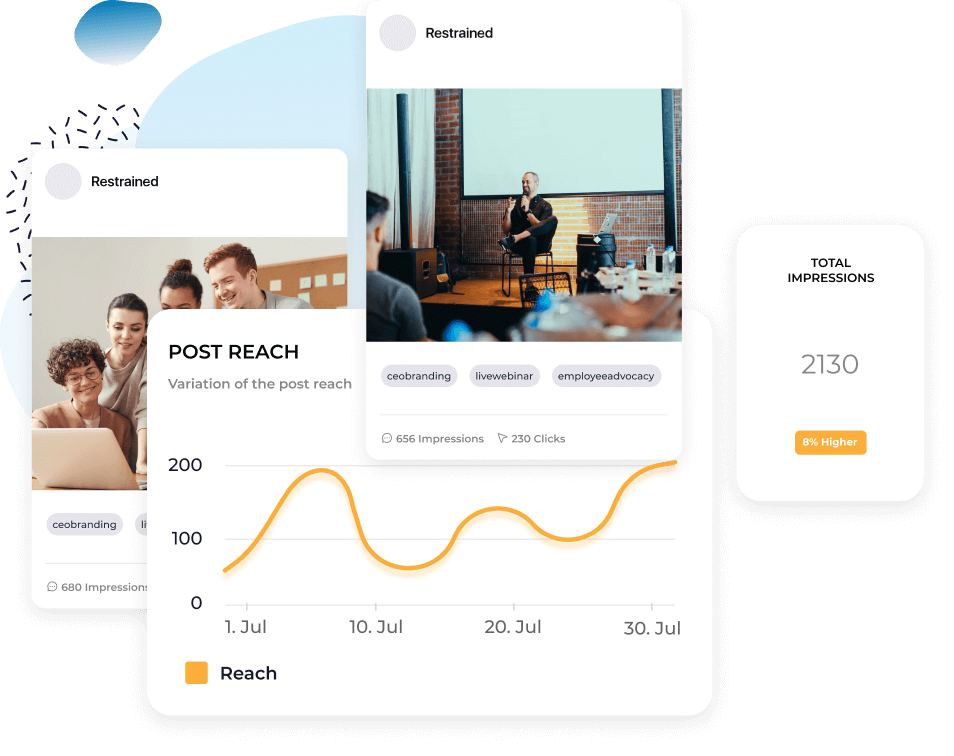
- Des insights de Reach qui présentent des données de base sur le nombre de personnes que tu as touchées avec ton contenu LinkedIn sur une période donnée.
- Des données d’Impressions qui te permettent de voir combien de personnes ont vu ton contenu et de trouver le meilleur jour et la meilleure heure pour publier selon tes Impressions moyennes.
- Un rapport sur les données démographiques de l’audience qui te permet de consulter des analytics comme le nombre et la croissance de tes Followers, leur répartition géographique et des informations sur leur activité professionnelle.
- Une section consacrée à tes publications LinkedIn, qui offre une vue d’ensemble de tes publications récentes classées selon leurs performances, ainsi que les métriques d’engagement de base de chacune.
- Un dashboard de comparaison directe qui te permet d’analyser les pages d’autres entreprises d’une autre région dans ton dashboard Socialinsider.
- Des rapports de campagne basés sur les publications que tu as identifiées dans ton compte Socialinsider comme faisant partie d’une campagne spécifique, ainsi que sur leurs performances globales.
Tu peux également télécharger tout ou partie de ces rapports d’analytics LinkedIn en cliquant sur Télécharger dans l’angle supérieur droit, afin de partager les analytics de ta page LinkedIn avec les autres membres de ton équipe. Les formats disponibles sont CSV, PPT, PDF et XLS. Tu peux aussi importer les données LinkedIn dans Google Looker Studio.
Quelles métriques de page LinkedIn dois-tu suivre ?
Tu dois suivre plusieurs métriques LinkedIn pour comprendre pleinement les performances de ton contenu et savoir si tu dois modifier ton activité sur LinkedIn ou ta stratégie globale.
Identifier les meilleures métriques de contenu LinkedIn à suivre t'aide à déterminer si ta stratégie fonctionne. Différentes catégories d'analytics t'aident à comprendre plusieurs aspects, comme les performances de ton contenu, ton audience et bien plus.
Ces catégories incluent :
- Analytics du contenu
- Analytics des visiteurs
- Analytics des Followers
- Analytics des leads
- Analytics de la Newsletter
- Analytics des concurrents
- Analytics de l'employee advocacy
- Analytics du trafic LinkedIn
Passons en revue les différents analytics de profil LinkedIn que tu peux envisager de suivre, classés par catégorie.
Analytics du contenu
Les analytics du contenu LinkedIn montrent les performances de tes publications LinkedIn, individuellement et dans leur ensemble. Ta stratégie marketing LinkedIn globale dépend fortement des performances de ton contenu organique. Il y a donc beaucoup de métriques et de KPIs à suivre ici.
Heureusement, Socialinsider peut beaucoup t'aider. Voici quelques-unes des métriques LinkedIn les plus importantes à suivre. Tu les trouveras directement dans ton dashboard Socialinsider.
Reach (disponible dans Socialinsider)
Reach désigne le nombre de personnes qui ont vu ton contenu LinkedIn. Il s'agit du nombre de spectateurs uniques de chaque publication LinkedIn.
Comprendre combien de personnes voient chacune de tes publications t'aide à évaluer tes performances face à l'algorithme LinkedIn. Idéalement, le reach de tes publications est égal ou supérieur au nombre de Followers de ton compte LinkedIn.
Remarque : si tu consultes cette métrique dans ton dashboard analytics LinkedIn natif, elle s'appellera « impressions uniques » au lieu de Reach.
Impressions (disponible dans Socialinsider)
Impressions désigne le nombre de fois où ta publication a été vue. Ce nombre peut être supérieur au Reach, car il comptabilise toutes les vues et non les personnes uniques ayant vu ta publication. Ainsi, si quelqu'un a vu ta publication deux fois, cela comptera pour une vue dans le Reach, mais pour deux Impressions.
Tu veux que tes Impressions soient supérieures au Reach, car cela signifie que les gens reviennent peut-être consulter ton contenu encore et encore. C'est un bon signe qu'il résonne auprès de ton audience.
Engagement (disponible dans Socialinsider)
Engagement désigne le nombre d'interactions que les utilisateurs ont eues avec ton contenu. Sur LinkedIn, cela inclut notamment :
- Likes/réactions
- Comments
- Reposts
- Link clicks
- Video views
- Follows
Si tu publies du contenu sans recevoir d'Engagement, tu dois repenser ta content strategy. Tes publications ne résonnent probablement pas suffisamment auprès de ton audience si elle ne laisse aucune réaction ni aucun commentaire. Teste différents types de contenu jusqu'à générer de l'Engagement.
Clicks (disponible dans Socialinsider)
Clicks désigne le nombre de fois où quelqu'un a cliqué sur ta publication LinkedIn. Cela peut inclure les clics sur un lien partagé, sur ton contenu pour en lire davantage, sur ta page d'entreprise ou sur un document partagé.
Dans Socialinsider, tu peux consulter les données d'Engagement avec ou sans Clicks. En effet, tu accèdes aux Clicks uniquement lorsque tu connectes un compte LinkedIn autorisé que tu gères.
Ainsi, tu peux comparer plus précisément certaines métriques d'Engagement en comparant les taux d'Engagement sans Clicks à ceux de tes concurrents, tout en disposant de données comme l'Engagement Rate avec Clicks pour ton usage interne.
Reactions (disponible dans Socialinsider)
Sur LinkedIn, les Reactions désignent les différentes façons de réagir à une publication. Ce qui se limitait aux « Likes » au lancement de LinkedIn comprend désormais :
- Like
- Celebrate
- Support
- Love
- Insightful
- Funny
Beaucoup de personnes peuvent se contenter de laisser un simple « Like », mais proposer des Reactions supplémentaires te donne une idée de ce qu'elles pensent de ton contenu. De plus, laisser une réaction autre qu'un « Like » prend plus de temps. Cela signifie qu'elles ont voulu consacrer davantage d'attention à ta publication qu'en cliquant rapidement sur le bouton « Like ».
Comments (disponible dans Socialinsider)
Comments t'indique bien sûr combien de personnes ont laissé un commentaire sur tes publications LinkedIn. Tu veux voir ce nombre continuer à progresser à mesure que ta présence sur LinkedIn se développe.
Un excellent moyen d'augmenter le nombre de Comments que tu reçois consiste à terminer chacune de tes publications LinkedIn par une question. Cherche à lancer un dialogue autour du sujet de ta publication pour mieux engager ton audience.
Reposts (disponible dans Socialinsider)
Reposts (également appelés partages) désigne le nombre de fois où quelqu'un a partagé ou republié ta publication sur son propre profil ou sa page d'entreprise. Lorsque les utilisateurs republiquent ton contenu, tu peux toucher une toute nouvelle audience. Tu veux donc augmenter tes Reposts.
Commence par demander à tes employés de repartager ton contenu (nous en parlerons davantage dans la section sur les analytics de l'employee advocacy) et continue à créer du contenu qui plaira à ton audience.
Engagement rate (disponible dans Socialinsider)
L'Engagement rate s'obtient en divisant ton Engagement total par ton nombre total de Followers, ton Reach total ou tes Impressions totales, puis en multipliant le résultat par 100 pour l'exprimer en pourcentage. Tu trouveras ces trois calculs de l'Engagement Rate dans ton dashboard Socialinsider pour comprendre clairement le niveau d'Engagement de ton audience.
Top-performing posts sorted by engagement (disponible dans Socialinsider)
Dans la section Posts de ton dashboard Socialinsider, tu peux afficher la liste de tes publications les plus performantes, classées par Engagement. Tu peux aussi les filtrer par :
- Engagement rate
- Date
- Engagement/impressions rate
- Impressions
- Clicks
- Views
Une fois encore, cherche des tendances pour voir si certains types de publications restent en tête, quel que soit le mode de tri.
Content formats sorted by impressions (disponible dans Socialinsider)
Dans l'onglet Impressions de tes insights Socialinsider, tu peux consulter ton graphique en barres Post types by impressions. Il te montre quels types de publications (par exemple, partages de liens, images, vidéos, sondages, documents natifs, textes, carrousels) obtiennent le plus d'Impressions, afin que tu puisses créer davantage de ce type de publication.
Video views (disponible dans Socialinsider)
Dans l'onglet Engagement de Socialinsider, fais défiler la page jusqu'aux différentes métriques vidéo. L'une des plus importantes est celle de tes Video Views.
Les Video Views indiquent combien de vues tes vidéos ont obtenues. Sur LinkedIn, une vue vidéo est comptabilisée après au moins trois secondes de visionnage. Les Video Views sont également comptabilisées si quelqu'un regarde ta vidéo plusieurs fois.
Tu peux aussi obtenir des métriques comme :
- Average views per video
- Total watch time
- Average watch time per video
Content pillars analysis (disponible dans Socialinsider)
Les content pillars sont les principaux sujets autour desquels ton entreprise publie du contenu. Avec Socialinsider, tu peux facilement taguer tes publications dans différentes campagnes selon leur content pillar. Fais-le dans l'onglet Campaigns de ton dashboard.
Cela te donne des insights sur les content pillars les plus performants. Un sujet donné résonne peut-être mieux sur LinkedIn, tandis que d'autres fonctionnent mieux sur d'autres plateformes. Adapte ta content strategy en conséquence.
Ensuite, consulte tes analytics des visiteurs pour savoir qui visite ta page d'entreprise LinkedIn. Tu trouveras ces métriques dans ton dashboard analytics LinkedIn natif.
Passons en revue chaque section des métriques de visiteurs LinkedIn pour mieux comprendre les data analytics disponibles et leur signification pour ta stratégie.
Analytics des visiteurs
The visitor highlights te donne trois insights principaux :
- Page views : le nombre de fois où ta page d'entreprise a été consultée
- Unique visitors : le nombre de personnes uniques ayant visité ta page d'entreprise
- Custom button clicks : si tu as configuré un bouton personnalisé en haut de ta page d'entreprise, cette donnée t'indique combien de fois il a été cliqué pendant une période de reporting donnée
Cette section Highlights offre une vue d'ensemble idéale des performances de ta page d'entreprise.
Visitor metrics
Cette zone présente les métriques de visiteurs basées sur le trafic de ta page. Filtre-les par période pour voir le graphique linéaire s'adapter à ta demande. Tu peux également voir combien de personnes ont consulté les différentes sections de ta page, le nombre de fois où ta page a été consultée, ainsi que le nombre de visiteurs uniques, une nouvelle fois.
Visitor demographics
Tu peux ici mieux comprendre le profil des personnes qui consultent régulièrement ta page d'entreprise, à partir des données démographiques de leur profil.
Tu trouveras notamment :
- Fonction
- Localisation
- Niveau hiérarchique
- Secteur
- Taille de l'entreprise
Cela peut t'aider à déterminer si ton contenu atteint les bonnes personnes.
Life page traffic
Les Life pages sont des pages personnalisées qui te permettent de partager davantage la culture de ton entreprise avec les candidats sur LinkedIn. Tu peux présenter plus en détail les activités de ton entreprise, tes équipes et bien plus. C'est un excellent moyen d'attirer les talents pendant les périodes de recrutement.
And tu peux obtenir des insights spécifiques sur les performances de ta Life page dans l'onglet Visitors. Consulte des métriques comme le nombre total de visiteurs et les visites uniques pour vérifier que les utilisateurs consultent bien ta Life page publiée.
Analytics des Followers
Le troisième onglet du dashboard analytics natif de LinkedIn te renseigne sur les personnes qui ont réellement cliqué sur le bouton Follow et suivent désormais activement ta page d'entreprise.
Examinons les différentes métriques de Followers disponibles dans l'outil analytics natif de LinkedIn.
Follower highlights
Obtiens rapidement des insights sur tes Followers LinkedIn dans la zone Highlights. Tu y trouveras :
- Total followers : le nombre total de Followers de ton entreprise sur la plateforme
- New followers : la croissance de ton nombre de Followers au cours des 30 derniers jours, avec son pourcentage de croissance
Follower metrics
Cette section te donne accès à un graphique linéaire montrant l'évolution de la croissance de tes Followers sur une période donnée. Le graphique affichera probablement des périodes de croissance et d'autres de baisse, mais l'idéal est d'observer une tendance globale à la hausse.
Follower demographics
Cette section contient des données similaires à celles de la section Visitor demographics. Découvre qui te suit selon les données démographiques LinkedIn de ces personnes. Tu verras notamment :
- Fonction
- Localisation
- Niveau hiérarchique
- Secteur
- Taille de l'entreprise
All followers
Cette section présente les Followers de ta page d'entreprise, ainsi que certains détails à leur sujet et la date à laquelle ils ont suivi ta page, classés du plus récent au plus ancien.
Analytics des leads
LinkedIn étant une plateforme de social networking professionnelle, elle permet bien sûr de générer des leads. Elle propose également un rapport analytics pour suivre les performances de ta génération de leads.
Dans cette section, tu peux voir chaque campagne de génération de leads que tu as menée, sa date de création, son statut actuel et le nombre de leads générés. Tu peux ensuite télécharger un fichier contenant tous tes leads pour les ajouter à ton CRM et commencer à les fidéliser.
Analytics de la Newsletter
Si ton entreprise a lancé sa propre Newsletter LinkedIn, tu dois consulter cette section de ta plateforme analytics LinkedIn. Elle t'aidera à comprendre les performances de ta Newsletter.
Examinons les sections disponibles dans le rapport analytics de la Newsletter LinkedIn.
Trends
Consulte les tendances de ta Newsletter sur une période donnée. Les métriques disponibles ici sont :
- Article views : le nombre de fois où le contenu de ta Newsletter a été vu
- New subscribers : le nombre de nouvelles personnes abonnées à ta Newsletter
Tu verras également un graphique linéaire pour visualiser toute croissance éventuelle.
Article totals
Tu obtiendras ici les principales métriques de ta Newsletter, comme :
- Impressions : le nombre total de vues obtenues par ta Newsletter
- Engagements : le nombre total d'Engagements obtenus par ta Newsletter
- Article views : le nombre total de fois où quelqu'un a cliqué sur l'un de tes articles pour l'ouvrir et le lire
Subscriber demographics
Filtre tes abonnés selon leur :
- Fonction
- Localisation
- Niveau hiérarchique
- Secteur
- Taille de l'entreprise
New subscribers
Affiche tes abonnés du plus récent au plus ancien. Tu verras des extraits de leur profil, avec leur intitulé de poste et leur niveau de relation.
Analytics des concurrents
Tu peux ensuite consulter les analytics de tes concurrents sur LinkedIn. Commence par ajouter les pages dont tu veux comparer les performances aux tiennes.
Tu auras ensuite accès à deux nouvelles sections qui t'aideront à comparer ta croissance à la leur.
Competitor highlights
Tu peux voir ici combien de publications tu as partagées par rapport à tes concurrents au cours des 30 derniers jours, ainsi que ton Engagement Rate comparé au leur.
New follower metrics
Ce graphique te montre ton classement en matière de nouveaux Followers par rapport à la concurrence au cours des 30 derniers jours.
Organic content metrics
Cette section te montre ton classement par rapport à tes concurrents en matière d'Engagements totaux et de Posts totaux.
Analytics de l'employee advocacy
Cette section t'indique quelles métriques d'employee advocacy suivre et te donne une idée de l'activité de tes employés sur la plateforme. LinkedIn étant davantage axé sur le professionnalisme, de nombreux employés l'utilisent pour promouvoir ou mentionner les marques pour lesquelles ils travaillent.
C'est ce qu'on appelle l'employee advocacy : lorsque les membres de ton équipe défendent activement ton entreprise. C'est un excellent moyen de toucher une audience plus large et de générer davantage de leads et de ventes.
Si tu souhaites lancer une campagne d'employee advocacy, tire parti de cette section. Tu y trouveras notamment :
- Le nombre d'employés qui publient
- Le nombre de membres LinkedIn qui interagissent avec tes employés
- Le contenu recommandé à tes employés
Tu peux suivre différentes métriques ici, selon les objectifs de ton programme d'employee advocacy.
Comment consulter les analytics de tes publications sur LinkedIn ?
L'une des meilleures fonctionnalités de reporting de la plateforme est la possibilité de consulter les analytics de chaque publication LinkedIn. Cette section se trouve dans la section Content engagement, elle-même située dans Content analytics sur la plateforme LinkedIn.
Tu peux y consulter les données d'Engagement publication par publication, dans un graphique clair. Tu verras les informations suivantes :
- Titre de la publication
- Audience
- Boost disponible
- Publié par
- Date de création
- Impressions
- Views
- Clicks
- CTR
- Reactions
- Comments
- Reposts
- Follows
- Engagement rate
- Engagements
Tu peux également retrouver toutes ces informations et bien plus dans ton dashboard Socialinsider. Va dans la section Posts, puis clique sur le texte View Analytics en bas de chaque publication pour obtenir des rapports analytics LinkedIn encore plus détaillés sur chacune de tes publications.
Tu y trouveras notamment :
- Hashtags
- Reactions
- Comments
- Shares
- Reach
- Impressions
- Link clicks
- Engagement
- Engagement rate
- Engagement/impressions rate
- Distribution de l'Engagement dans le temps
De plus, la section Posts de Socialinsider te permet de trier tes publications pour trouver les plus performantes selon différentes métriques, comme l'Engagement, l'Engagement Rate, les Clicks et bien plus.
Ainsi, tu peux voir tes publications les plus performantes dans l'ordre et cliquer sur chacune pour obtenir des informations plus détaillées.
Comment lire un rapport d’analytics LinkedIn ?
Tu dois analyser tes analytics, mais tu ne sais pas comment bien interpréter ton rapport ? Voyons comment réaliser une analyse LinkedIn pour que tu comprennes clairement ce que tes métriques te révèlent.
Commence par le suivi de tes performances. Tu y trouveras les métriques clés liées aux performances de chacune de tes publications et à tes analytics LinkedIn dans leur ensemble.
Tu peux notamment examiner :
- Tes meilleures publications
- Le type de publications concerné
- Le reach et l’engagement que tu obtiens
- L’augmentation de ton reach et de ton engagement par rapport à la dernière période de reporting
Ensuite, passe aux données démographiques de ton audience. Examine des données telles que :
- Total de Followers
- Followers Growth
- Données démographiques de tes Followers
Beaucoup pensent que le nombre de Followers est une métrique de vanité, c’est-à-dire uniquement destinée à faire joli. Pourtant, suivre ta croissance reste important, car cela te montre combien de personnes s’intéressent suffisamment à ton entreprise ou à ton contenu pour le suivre activement.
Tu peux ensuite examiner quelques pistes d’optimisation de ton contenu. Tu as déjà étudié certaines métriques importantes dans le suivi de tes performances. Elles devraient te donner une bonne idée de points comme :
- Ta content strategy est-elle efficace actuellement ?
- Un type de publication obtient-il de meilleures performances que les autres ?
- Peux-tu optimiser ta stratégie en partageant davantage de contenu performant ?
Intéresse-toi ensuite à ton budget publicitaire LinkedIn. Certaines publications mériteraient-elles d’être boostées pour augmenter davantage leur reach et leur engagement ? Booster du contenu déjà performant peut l’aider à atteindre une audience encore plus large.
Enfin, examine tes ajustements stratégiques dans leur ensemble. Atteins-tu la bonne audience ? Si ce n’est pas le cas, comment peux-tu réorienter ta stratégie pour que ton contenu touche la bonne cible ?
Toutes ces informations devraient t’aider à comprendre tes performances LinkedIn, à interpréter correctement tes données et à définir un plan d’action pour aller de l’avant.
Comment exporter des données d’analytics LinkedIn ?
Tu peux exporter ton rapport de performances LinkedIn de deux façons. Depuis le dashboard LinkedIn ou avec un outil de reporting tiers. Comme Socialinsider, naturellement.
Pour exporter tes données LinkedIn directement depuis la source, ouvre ton dashboard d’analytics LinkedIn. Choisis le rapport à exporter — Content, Visitors, Followers, Competitors, Leads ou Employee Advocacy — puis clique sur l’onglet correspondant.
Ensuite, clique simplement sur le bouton Export dans l’angle supérieur droit du dashboard. Choisis la période appropriée, par exemple la dernière semaine, le dernier mois ou le dernier trimestre, puis finalise ton export.
Tu pourras télécharger ton rapport au format XLS afin de l’ouvrir et d’y apporter des ajouts ou des modifications dans Microsoft Excel.
Cependant, comme nous l’avons mentionné, tu peux aussi exporter tes données LinkedIn avec un outil d’analytics social media complet comme Socialinsider. Commence par te connecter à ton compte, puis ouvre le dashboard d’analytics de ton profil LinkedIn.
Tu peux exporter chacun des rapports individuels disponibles : Summary, Content, Engagement, Reach, Impressions, Audience, Posts, Compare ou Campaigns. Commence par sélectionner la période que tu souhaites partager. Clique ensuite sur le bouton Download dans l’angle supérieur droit du dashboard du rapport.
Choisis ensuite si tu veux télécharger ton rapport au format XLS (Microsoft Excel), PDF (document) ou PPT (Microsoft PowerPoint).
Configurer ta page Summary avec toutes les métriques clés que tu souhaites suivre, puis l’exporter au format PDF, est l’une des façons les plus simples de compiler ton rapport de performances LinkedIn. Ainsi, tu n’as aucune tâche supplémentaire à effectuer, ni ton équipe. Ton résumé contient tout ce dont tu as besoin. Il te suffit de l’exporter rapidement avant de le présenter.
Comment voir les analytics d’un profil LinkedIn personnel ?
Tu veux voir comment ton profil LinkedIn personnel se comporte ? Tu peux aussi le faire directement dans LinkedIn ! Garde à l’esprit que tu ne pourras pas utiliser un outil de reporting tiers pour consulter les analytics de ton profil LinkedIn. En revanche, tu devrais pouvoir obtenir un aperçu de base dans les outils de LinkedIn.
Va sur ton profil LinkedIn, puis fais défiler la page jusqu’à la section Analytics. Depuis ton profil, tu peux voir en un coup d’œil le nombre de profile views, de post impressions et de search appearances obtenues au cours de la dernière semaine.
Clique sur Afficher toutes les analytics pour en voir davantage.
Dans les analytics de ton profil LinkedIn, tu peux consulter des insights comme :
- Post impressions : le nombre de fois où tes publications LinkedIn ont été vues au cours des sept derniers jours, ainsi que l’évolution en pourcentage
- Followers : le nombre total de Followers que tu as, ainsi que la croissance ou la baisse de ce nombre au cours des sept derniers jours
- Profile viewers : le nombre de personnes distinctes qui ont consulté ton profil au cours des 90 derniers jours
- Search appearances : le nombre de fois où ton profil est apparu dans les résultats de recherche LinkedIn d’autres utilisateurs au cours de la semaine précédente
Tu peux aussi suivre les tâches recommandées pour garder ton profil actif, ainsi que les outils pour créateurs auxquels tu as accès.
Tire davantage parti de tes données d’analytics LinkedIn
Commence ton essai gratuit de Socialinsider et découvre ce que les analytics natives de LinkedIn ne te montrent pas.